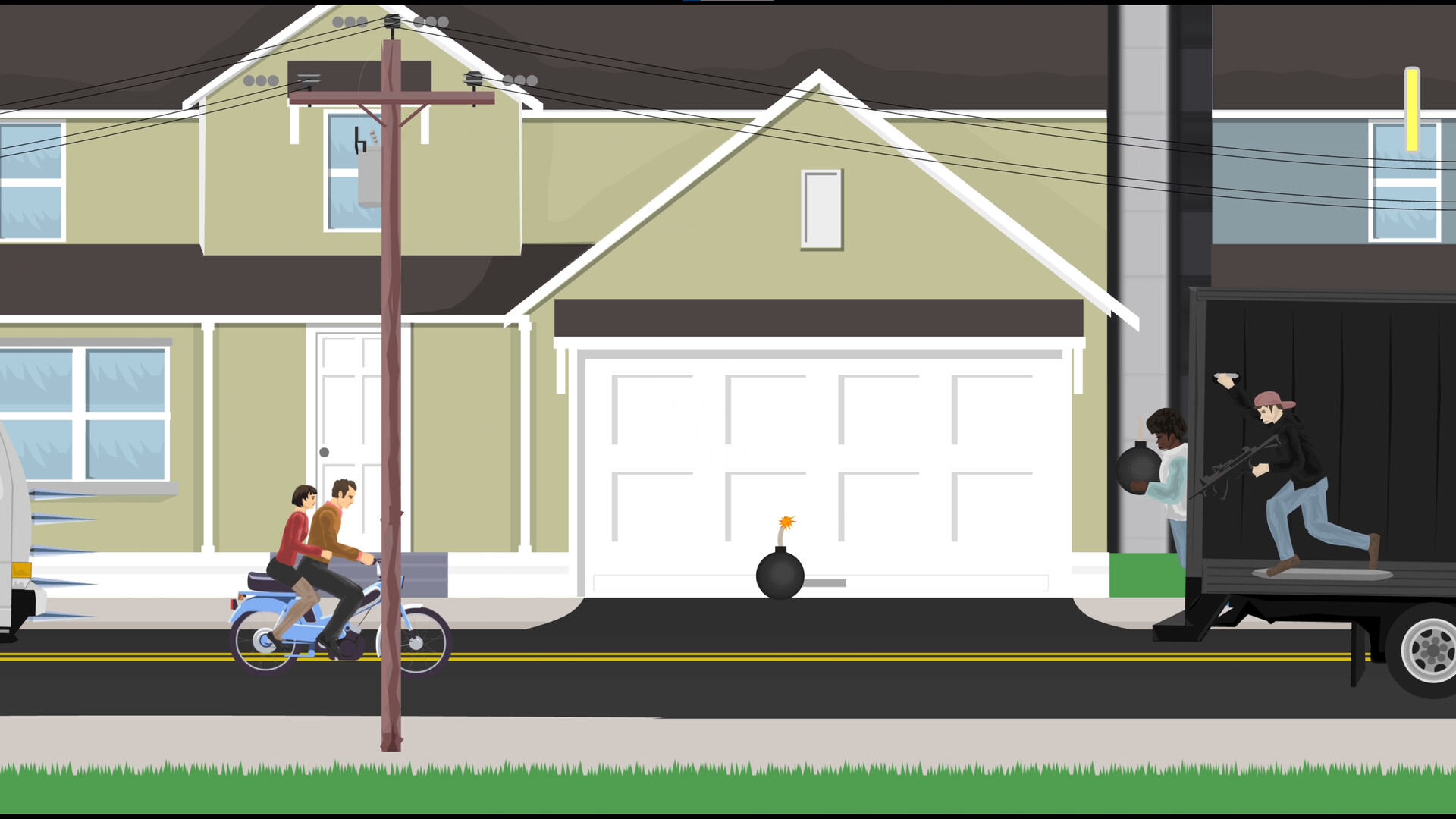
Start with selection, transforms and testing
Use Shift + left-click for multiple selections, Z/X to rotate, W/S to change height and D/A to change width. Press C to copy and V to paste; Shift + V pastes at the original position.
Press T to test your level and T again to return to editing. During a test, press F to mark your current location; a large red circle shows that position after you exit testing.
Edit objects and check landing positions
- How do I change a selection without clearing everything?
- Hold Shift and left-click to select multiple shapes, objects or NPCs. You can also deselect a single object this way while keeping the rest of your selection.
- Which keys resize and rotate objects?
- For a shape or object that supports resizing, W increases height, S decreases height, D increases width and A decreases width. Hold Shift to change the dimension by 10 each time. For a shape, object or NPC that supports rotation, Z rotates counter-clockwise and X rotates clockwise. Hold Shift to rotate by 10 each time.
- How do I copy something into exactly the same position?
- Press C to copy a shape, object or NPC, then V to paste it. Hold Shift while pressing V to paste it at the exact position from which it was copied.
- What do Fixed and Interactive change?
- Keep Fixed checked to hold a shape in place. Uncheck Fixed to let it behave as a falling object. Interactive determines whether a shape is physically present or serves as a background object.
- How do I mark a landing position, and when does the marker disappear?
- Press T to start testing. At the position you want to mark, press F, then press T to exit. The large red circle identifies that location for platform placement. Starting another test removes any placed markers.